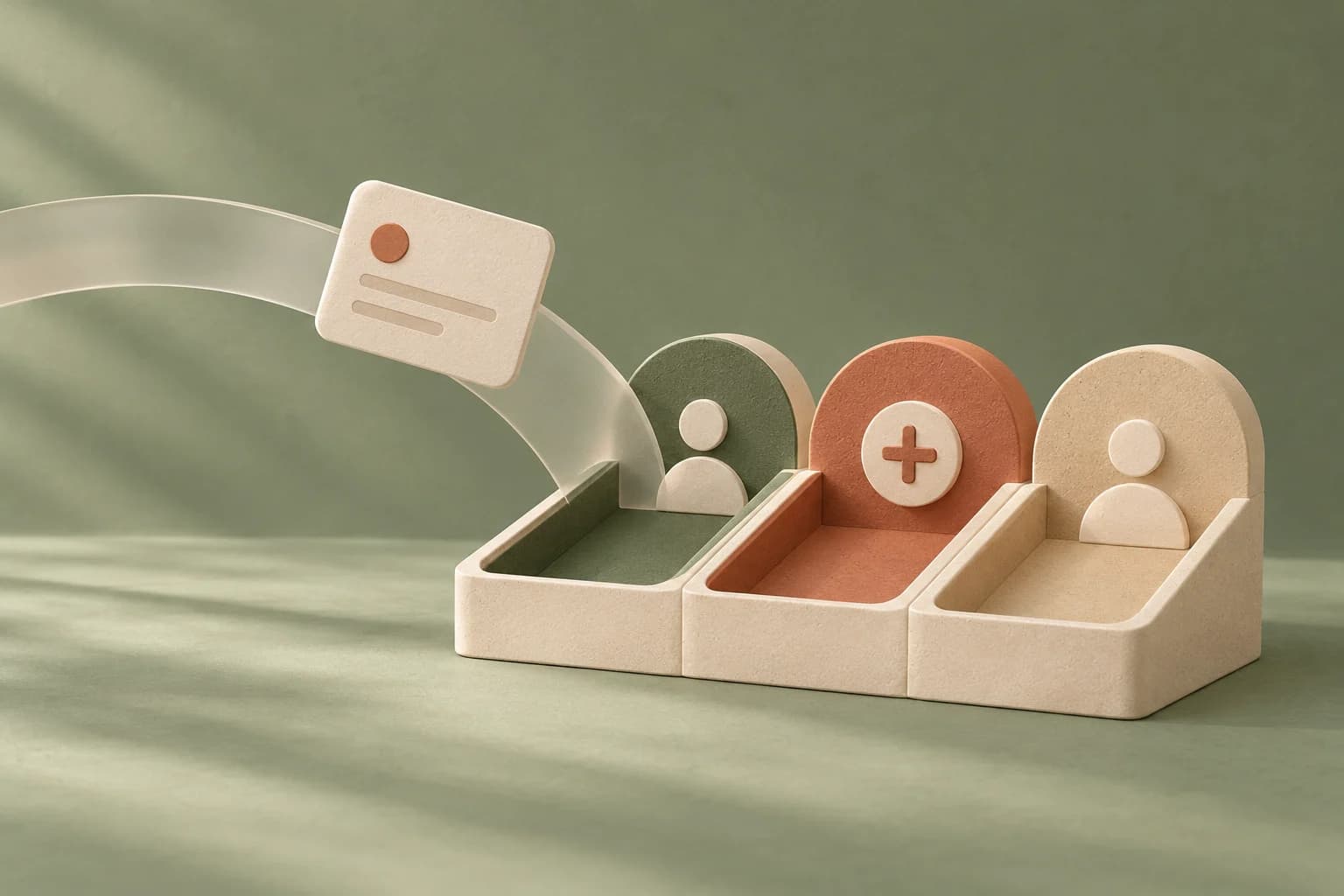
A visitor books Friday at 10 while you are with a patient. The time is already on your calendar, but nobody has decided yet who they are in your records.
Where the queue lives
New online bookings sits at the top of the Calendar page, and the Calendar item in the sidebar shows how many are waiting. That count refreshes every 30 seconds and when you come back to the tab. Each card shows the name, email and phone the visitor gave, plus the time, service, provider and location. Cards run earliest appointment first, and the queue isn't limited to the day you are viewing, so a booking from last week stays until you deal with it.
Three ways to resolve one
- Link to existing patient: search your patients and press Link booking.
- Create new patient: the first and last name are filled in from the name given, split at the first space, and you can edit both. Create & link also saves the booking's email on the new patient.
- Leave as guest: the appointment stays without a patient record, for someone who doesn't need one.
If the visitor's email matches a patient already on file, ignoring capital letters, the card says Matches existing patient and offers a one-click Link to that patient. Goji only suggests it. The public booking flow never searches your patient list, so nothing links unless you press the button.
After you decide
Linking or creating attaches the appointment to the patient, so the Online booking badge gives way to the patient's name. Leave as guest clears the card too, but the booking still has no patient, so it keeps its badge on the Calendar. Every resolution records who did it and when.
Nothing is final. Open a guest booking on the Calendar and choose Link to patient or Create patient, which opens a dialog that also takes a preferred name, email, mobile phone and preferred contact.
Which bookings arrive here
Only bookings made through your public booking link that have no patient yet. With Require an account to book on, the booking lands on a patient record straight away and skips the queue, as described in Account to confirm. Switch it off and bookings arrive here. A patient booking while signed in to the portal already has a record too (Booking from the portal).